|
|
Electronic Case File Handbook Release 18-01 March 28, 2018 |

|
|
Electronic Case File Handbook Release 18-01 March 28, 2018 |
4.5.1 Start the PaperStream Installation Process
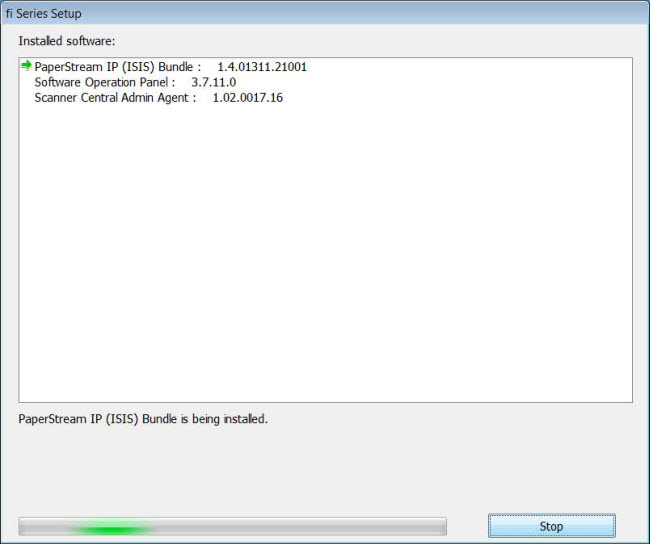
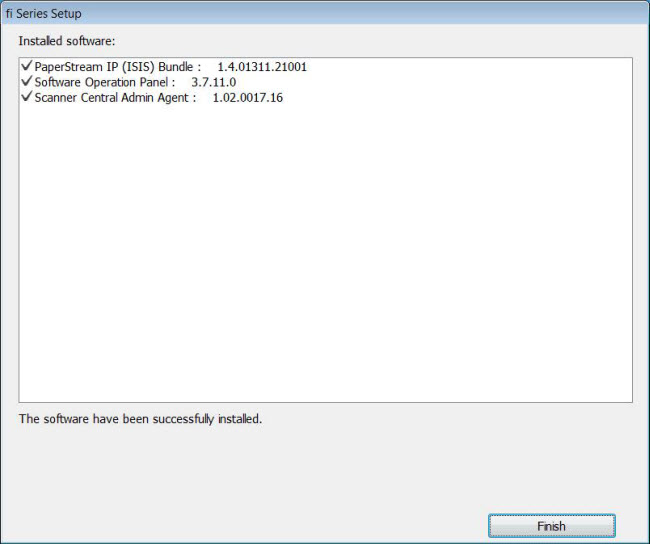
4.5.2 Update the ISIS Driver Bundle
4.5.3 Configure PaperStream Scan Source
4.5.4 Configure Scanner Properties
To begin installing PaperStream Software:
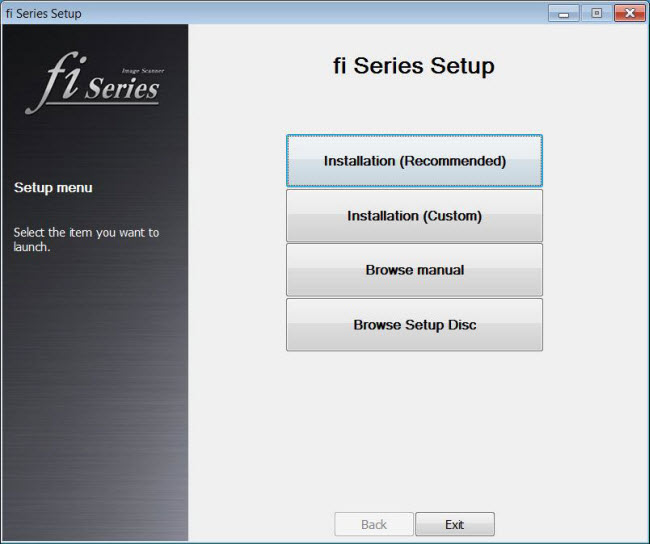
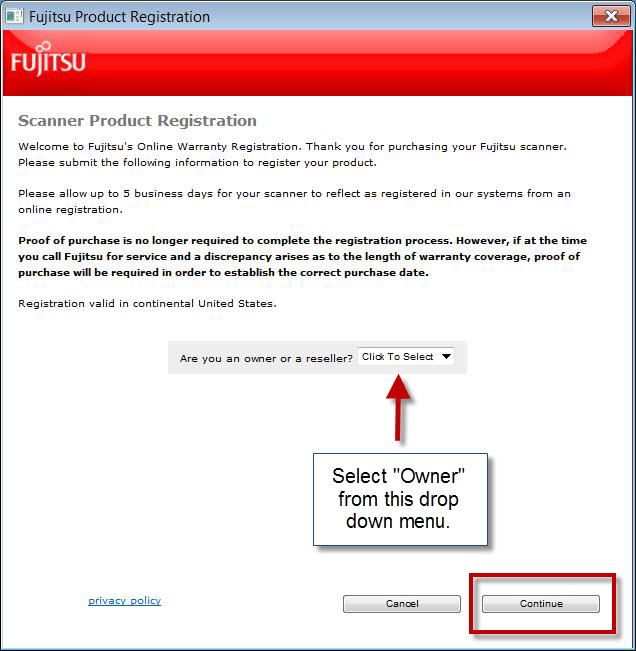
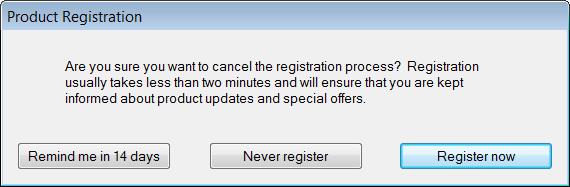
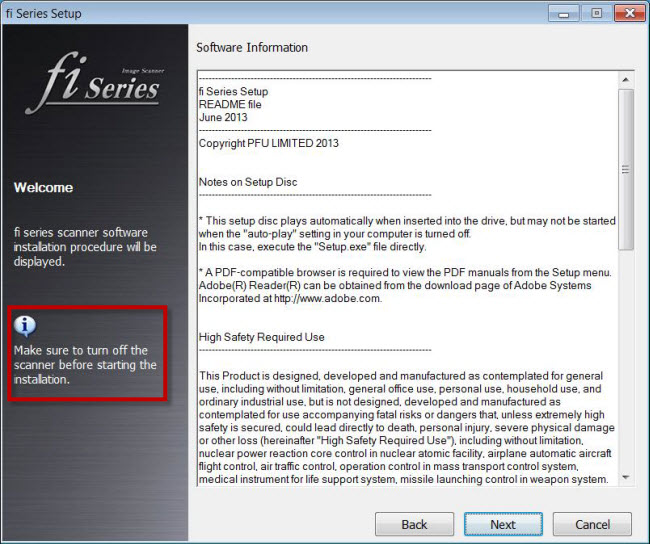
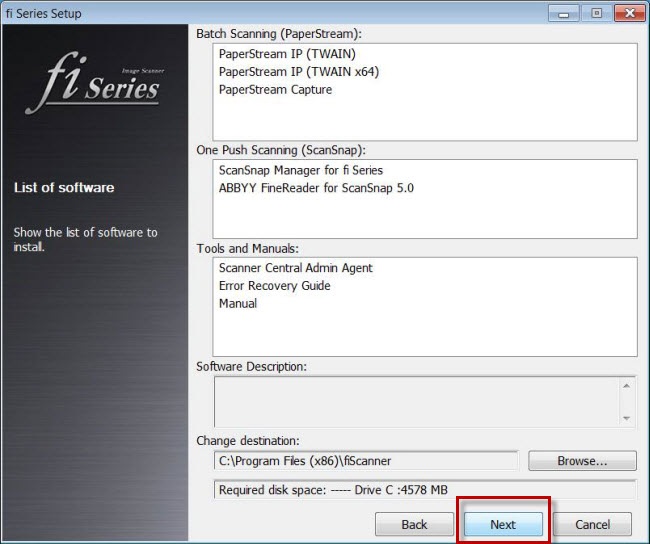
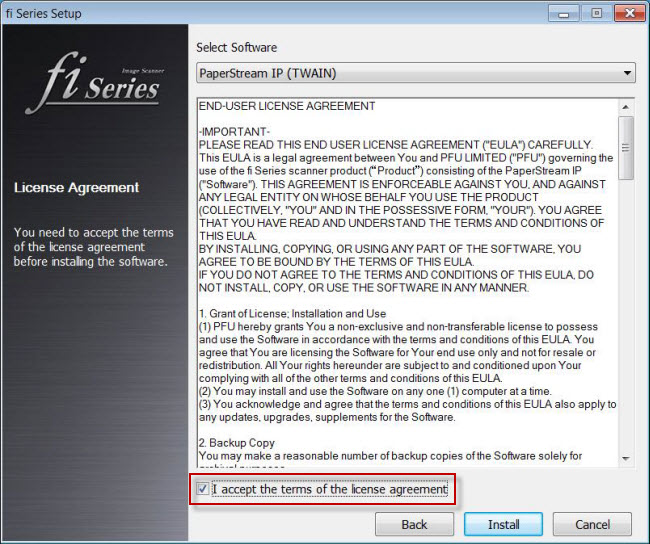
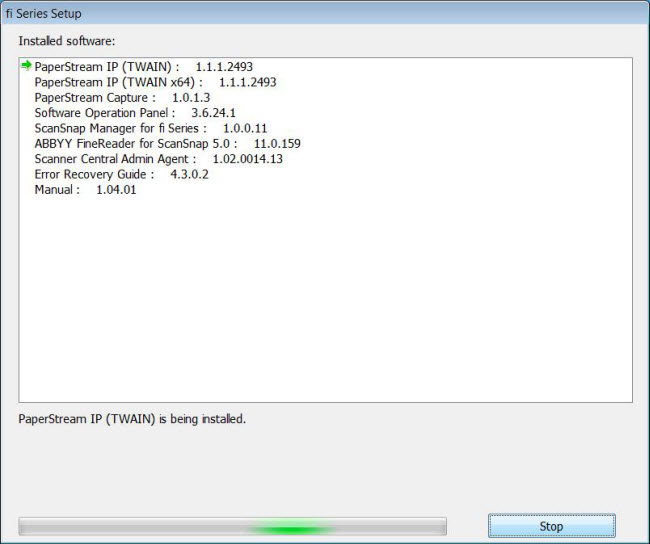
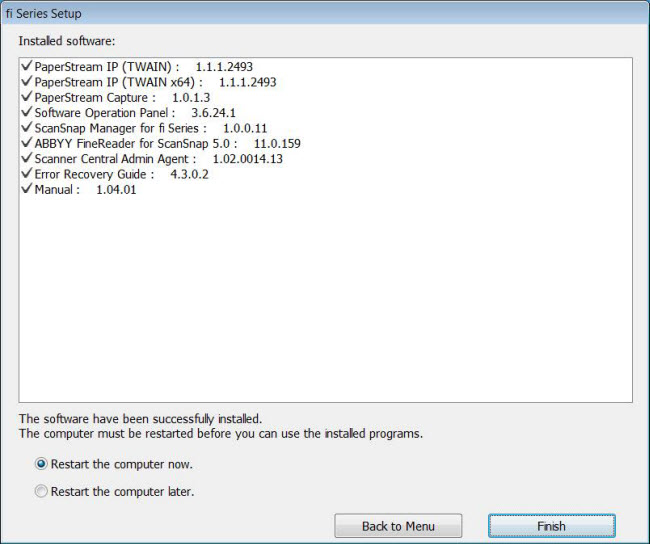
After downloading the update driver from the Fujitsu website and running the self extraction process you should see and icon ‘Disk1’ on the desktop.

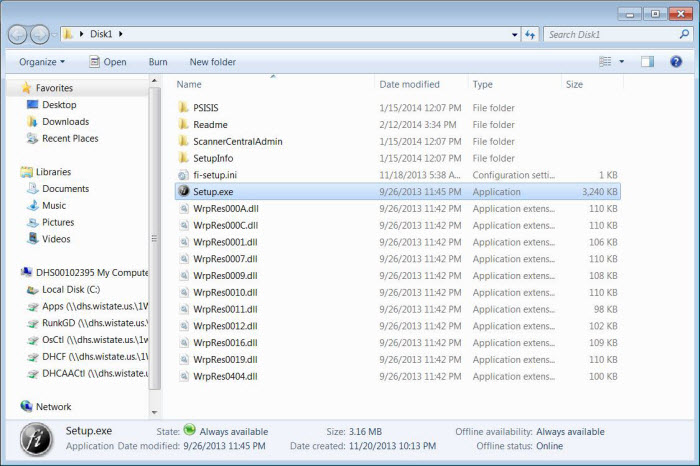
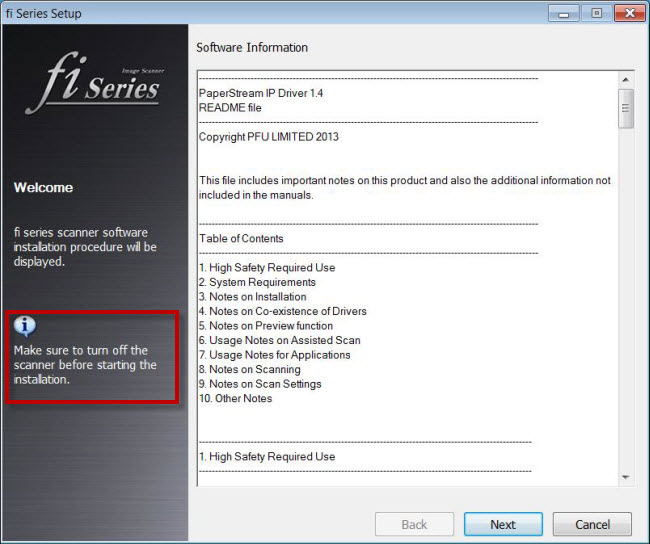
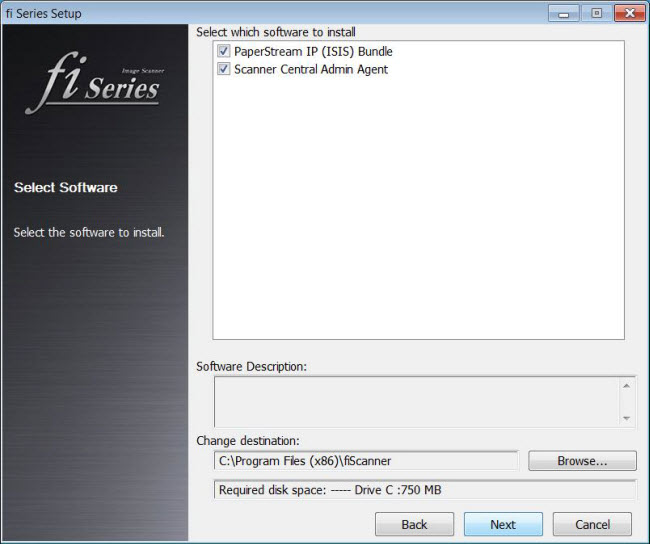
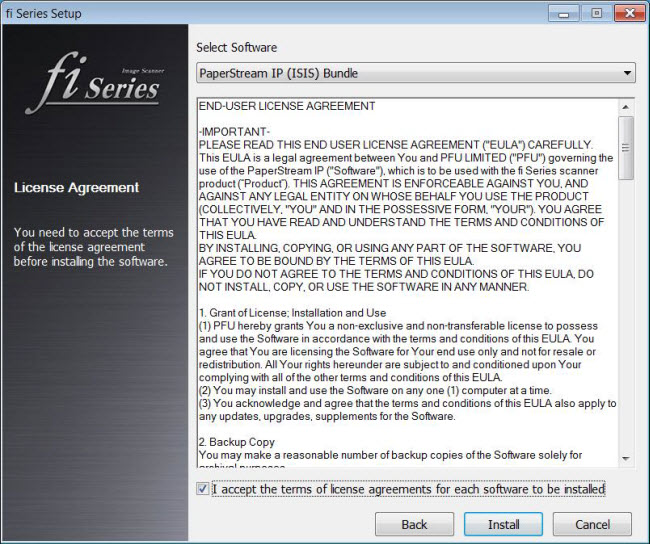
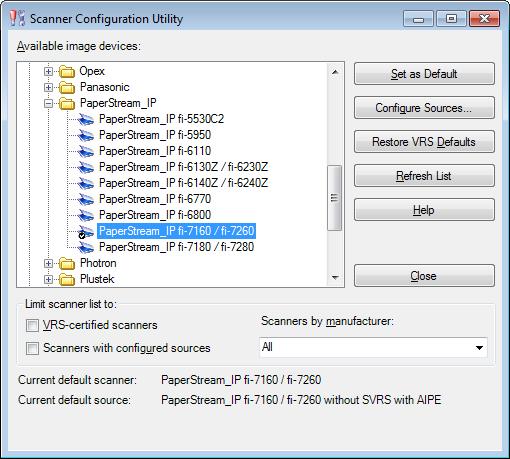
De-select ‘VRS-certified scanners’ and ‘Scanners with configured sources’. Be certain that under ‘Scanners by manufacturer’ ‘All’ is selected.
Click on ‘Refresh List’.
Search the refreshed list for ‘PaperStream_IP’.
Within the PaperStream group select your model of scanner.
Click on ‘Set as Default’.
Click on ‘Configure Sources…’.
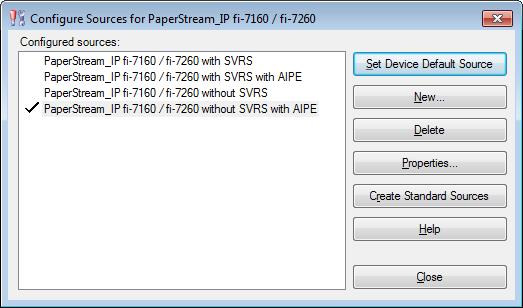
Select ‘PaperStream (your model) without SVRS with AIPE’.
Click on ‘Set Device Default Source’.
Click on ‘Close’ in the ‘Configure Sources’ dialogue box.
Click on ‘Close’ in the ‘Scanner Configuration Utility’ dialogue box.
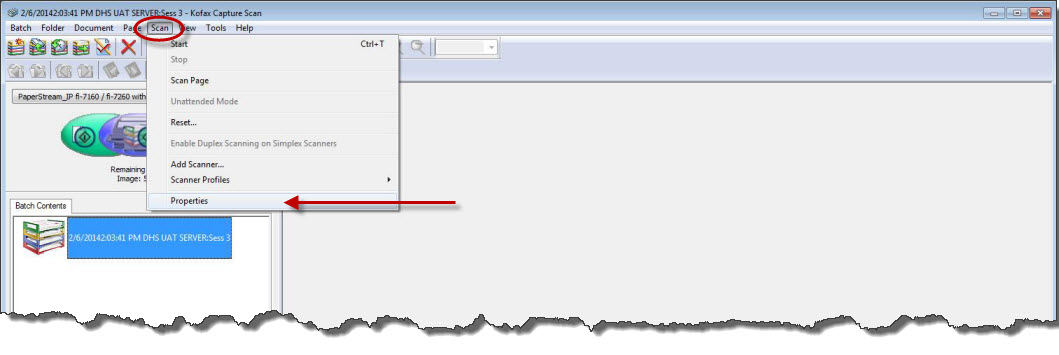
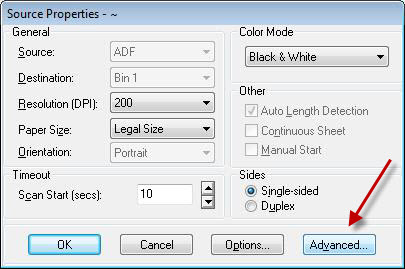
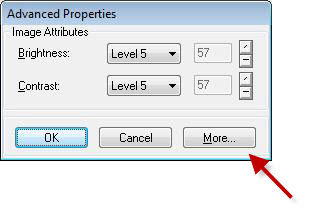
 button.
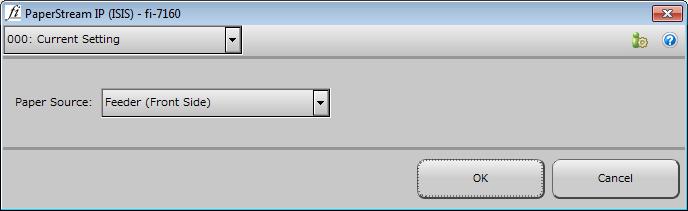
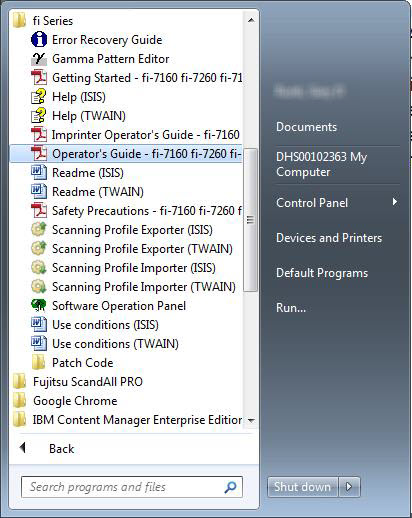
Documentation on configuring the scan settings is available in the operators guide which is part of the installed program group for the Fujitsu scanner.
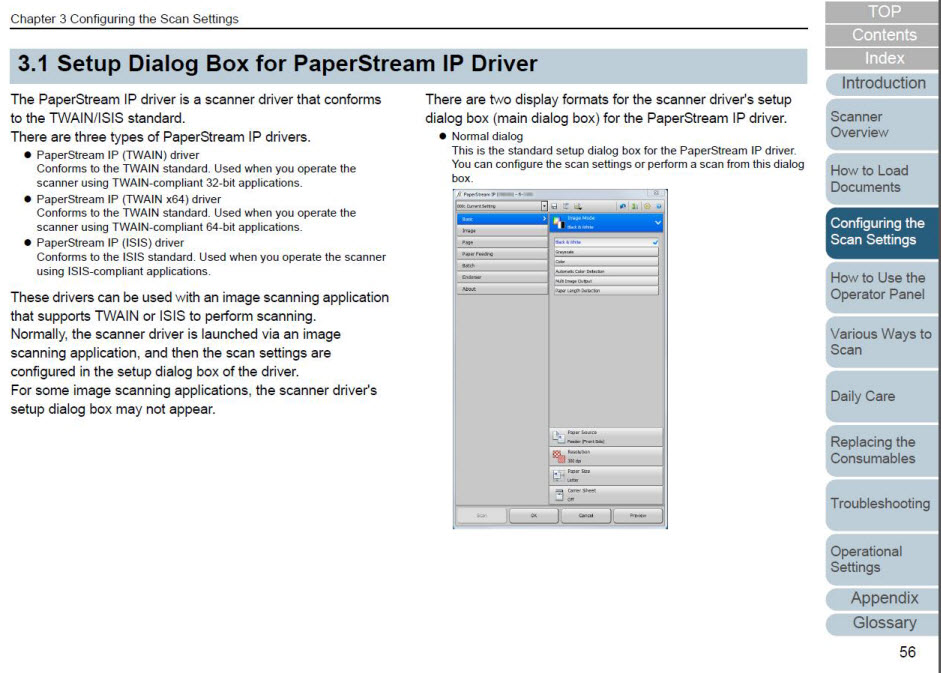
Screen shot of the scanner settings documentation in the Operators Guide.
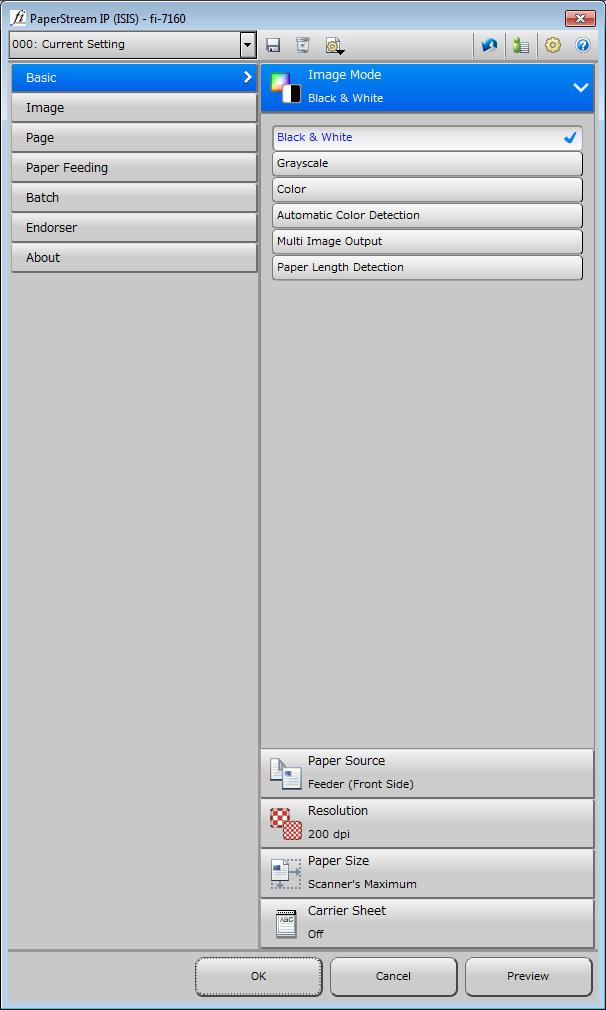
Screen shot of the scanner settings dialogue window.
This page last updated in Release Number: 15-01
Release Date: 01/16/15
Effective Date: 01/16/15