|
|
Electronic Case File Handbook Release 18-01 March 28, 2018 |

|
|
Electronic Case File Handbook Release 18-01 March 28, 2018 |
Documents automatically open in a viewer associated with their file type. Images open in Daeja ViewONE, PDF files open in Adobe Reader, and Microsoft Word and Excel files open in the internet browser.
All viewers contain the ECF toolbar, which has a number of features that allow you to modify how you view the document or navigate between documents.

The toolbar has the following options:
Split panes top and bottom: Allows you to split the viewer into two screens, one on the top and one on the bottom, to compare any two documents that were returned in the search results (for example, you could view page one of a bank statement on the top screen and page 60 of a correspondence document on the bottom screen).
Split panes left and right: Allows you to split the viewer into two screens, one on the right and one on the left, to compare any two documents that were returned in the search results.
View properties: Allows you to view all the document properties, such as case number, document code, and document type (displays the same information as the Properties window on the Search page [see Section 1.2.2.2.3 Properties Window]).
Note log: Allows you to view notes added directly to the document. (Note logs should not be used. All notes related to the document should be detailed in the case comments or PIN comments in CWW ).
Previous and next document: Allows you to switch between documents. Clicking the back arrow will take you to the previous search result and clicking the forward arrow will take you to the next search result.
Images, such as scanned or faxed documents, will automatically open in Daeja ViewONE, the ECF's document viewer.
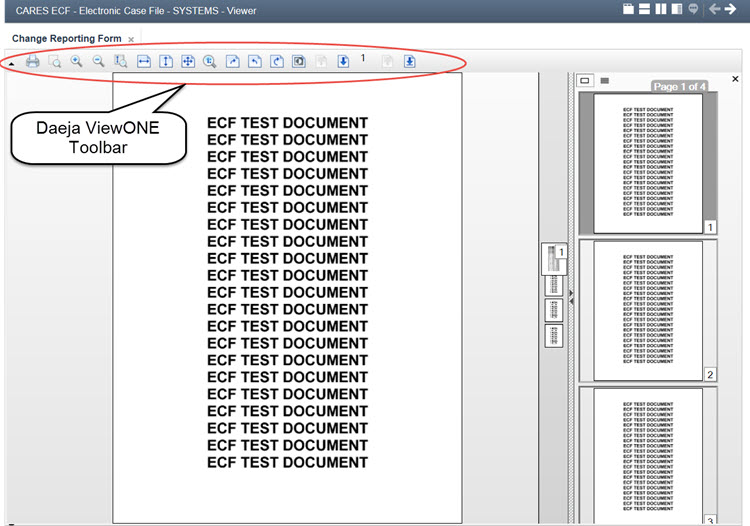
The Daeja ViewONE toolbar displays at the top of the viewer and contains the following:
 Show/Hide toolbar: Allows you to hide and expand the toolbar. If the toolbar is hidden, the arrow will be moved to the center top of the screen and will point down.
 Printing: Opens a window that allows you to prepare and print a document. The print window gives you the option to select which pages should be printed, as well as the margin size and page layout. After you click Prepare File, you will be prompted to a final printing window. (This is the standard print window you see with Microsoft Word.) Once you have made your selections, click Print.
 Zoom area: Selecting this icon allows you to zoom in on a document. To zoom in, click the mouse and drag the cursor over a specified area. To turn the zoom in function off, click the icon again.
 Zoom in: Selecting this icon allows you to zoom in incrementally on the entire document.
 Zoom out: Selecting this icon allows you to zoom out incrementally on the entire document.
 Show magnifier: Selecting this icon allows you to turn the cursor into a small magnifying glass (when rolling over the document). Click the icon a second time to close the magnifier.
 Fit to window width: Selecting this icon allows you to make the window fit the width of the document.
 Fit to window height: Selecting this icon allows you to make the view of a document fit to the height of the window.
 Fit to window: Selecting this icon allows you to fit a document view to the width and height of a current document (allowing you to see the whole document at a time).
 Zoom to 100%: Selecting this icon allows you to view the document at 100 percent.
 Rotate clockwise: Selecting this icon allows you to rotate the document 90 degrees clockwise.
 Rotate counterclockwise: Selecting this icon allows you to rotate the document 90 degrees counterclockwise.
 Rotate 180 degrees: Selecting this icon allows you to rotate the document 180 degrees.
 Inverting Colors: Selecting this icon allows you to invert the colors of the document you are viewing (black will become white and white will become black). Click on it to turn it on. Click on it again to turn it off.
 Previous page: Selecting this icon allows you to navigate to the previous page of the document.
 Next page: Selecting this icon allows you to navigate to the next page of the document.
 Current page: This icon indicates the page number currently being viewed. Selecting this icon allows you to enter a specific page you would like to navigate to within the document. (For example, if you would like to navigate to page 70 of a 200-page document, enter 70 into the pop-up).
 First page: Selecting this icon allows you to navigate to the first page of the document.
 Last page: Selecting this icon allows you to navigate to the last page of the document.
The Daeja ViewONE viewer has a large and small thumbnail viewer, located on the right side of the window. The small thumbnail viewer only displays when a document has multiple pages. You can close the large thumbnail; however, you will be unable to reopen it. The small thumbnail cannot be closed.
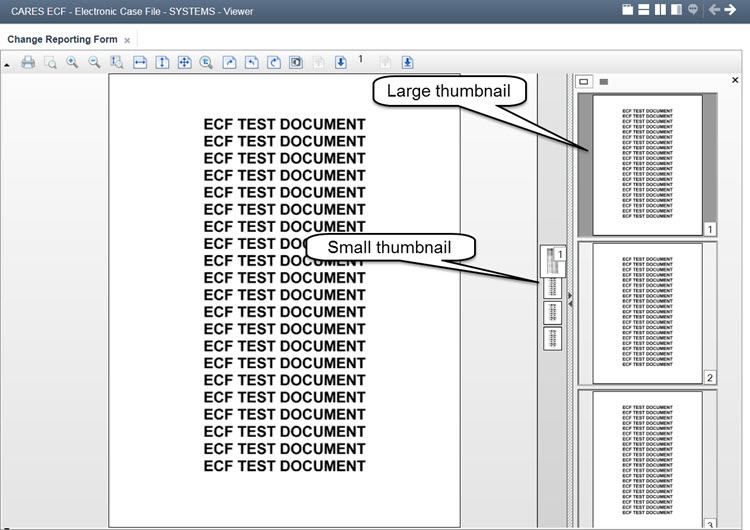
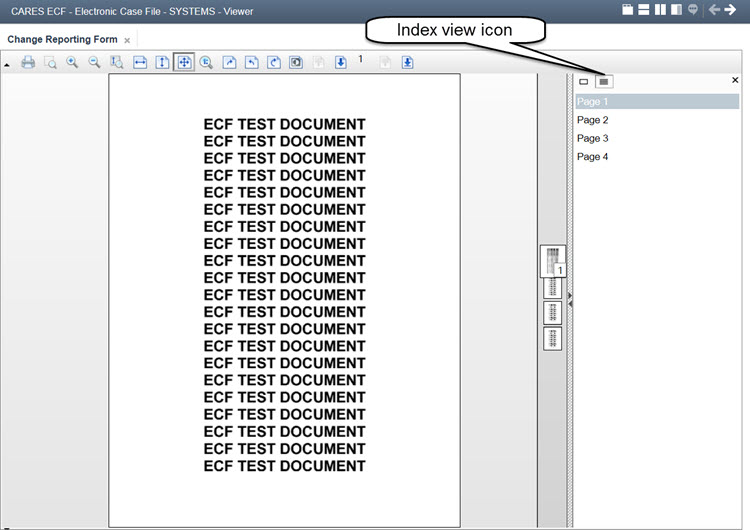
When using the large thumbnail, you may select whether you would like to view the side bar in thumbnail view (default) or switch to index view. The index view will give you a list of pages for the document (in place of thumbnails).
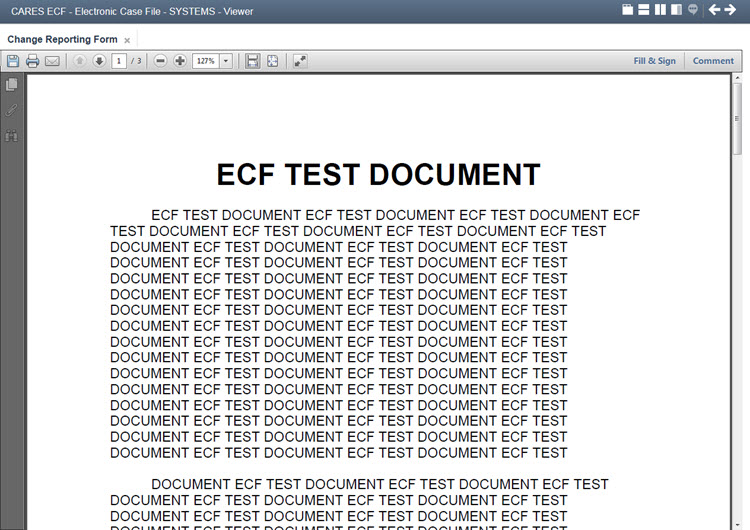
PDF files will automatically open in Adobe Reader. The Adobe Reader toolbar will be available at the top of the viewer.
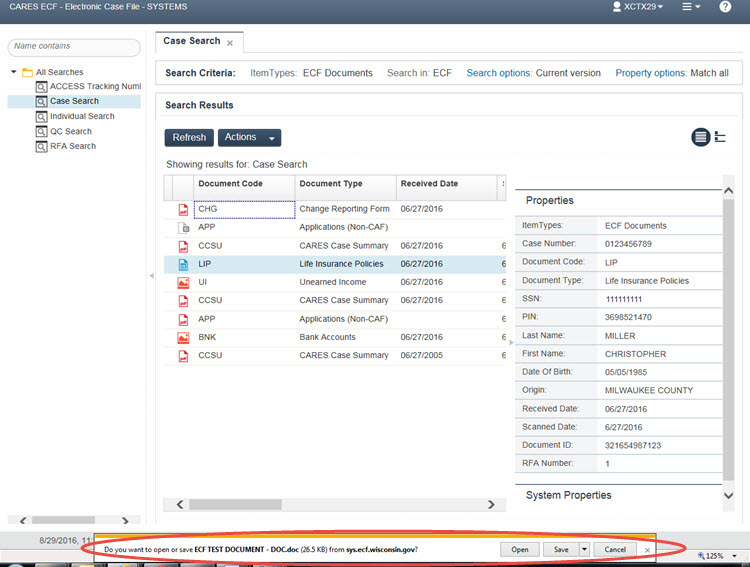
If a document cannot be opened by Daeja ViewONE or the PDF viewer, the ECF will try to open the document using your web browser. In most cases, your web browser will download the document.
If the ECF tries to open a document using your web browser, a banner asking whether you want to download or view the document will be displayed at the bottom of the Search page.
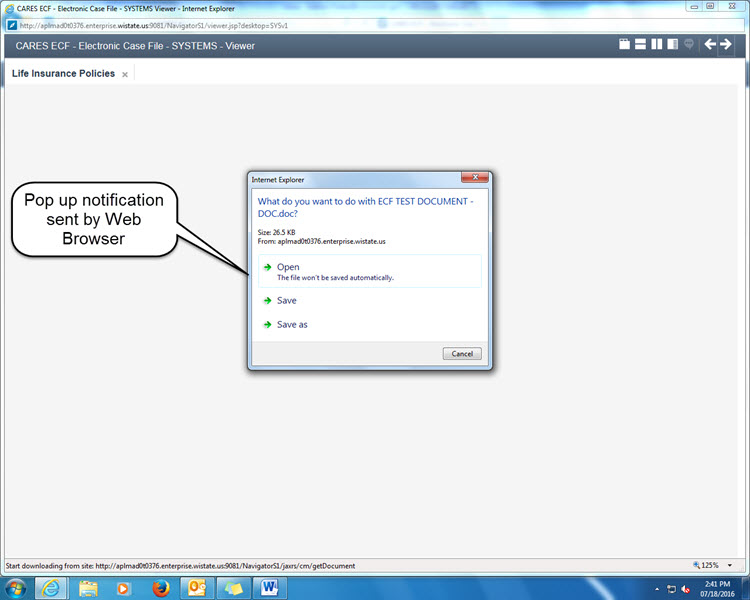
If you are navigating between documents using the ECF toolbar in either the Daeja ViewONE or PDF viewer and the ECF tries to open a document using your web browser, a dialog box will ask you whether you want to download or view the document.
You will be able to have multiple documents open at the same time in Daeja ViewONE or the PDF viewer. The first time you click on a search result, it will open in a new window. Each subsequent result that you click on will open in a new tab.
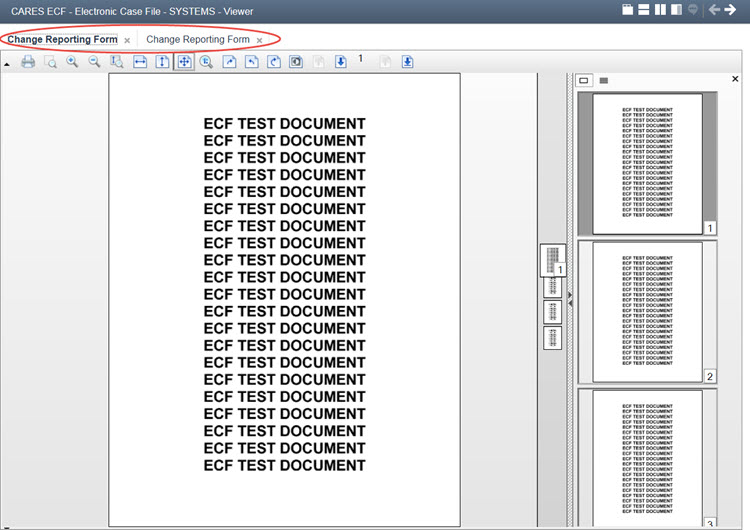
You can navigate between the different documents by clicking a tab. To close just one document, you can click the x next to the document name in the tab.
To close either Daeja ViewONE or the PDF viewer, click the red x in the top right corner of the screen. The CARES ECF browser window will remain open.

This page last updated in Release Number: 17-01
Release Date: 02/13/2017
Effective Date: 02/13/2017